

Prices on charts are 15-minute delayed and fetched regularly. Confirm live underlying and option prices at your broker before trading. See Delayed Data Disclaimer.
What this page is for
The page is built for comparison and rejection—not for picking the highest ROC dot and trading it blindly. Your Module 2 ownability and liquidity rules still gate every decision.
Open the page
- Log in at bigdipperoptions.com.
- From the top menu, open Charts → Wheel — Cash-Secured Puts (wording may vary slightly in the app).
- You land on the page title Wheel — Cash-Secured Puts.
Full page overview
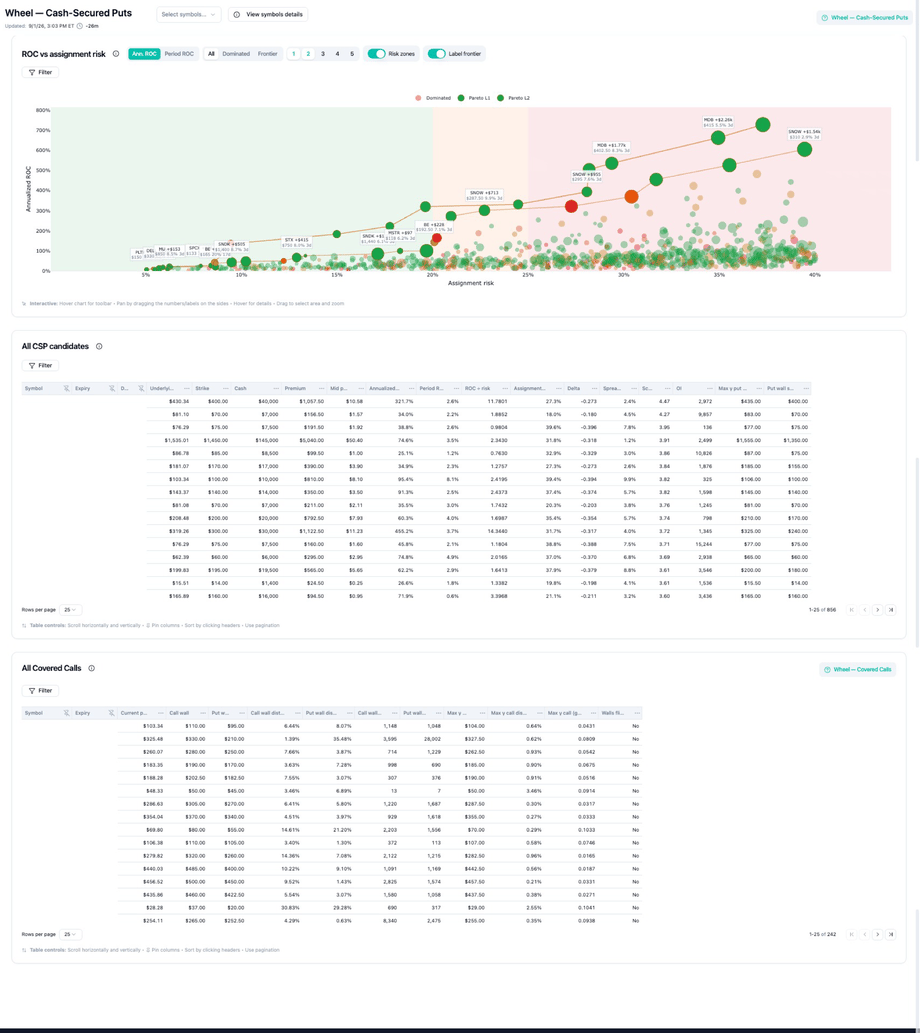
Suggested order: Select symbols → scatter Filter → frontier view → hover tooltips → click side panel (reject symbols) → CSP table → broker.
Page header

Purpose
Orient you on which wheel phase you are in (CSP / Phase A), how fresh the data is, and which symbols are in scope.Potential usage
Filtering the Wheel page
Open Filter on the scatter chart (funnel icon). Conditions apply to both dots and the CSP table. Scope tickers first in Select symbols…, then stack chart filters.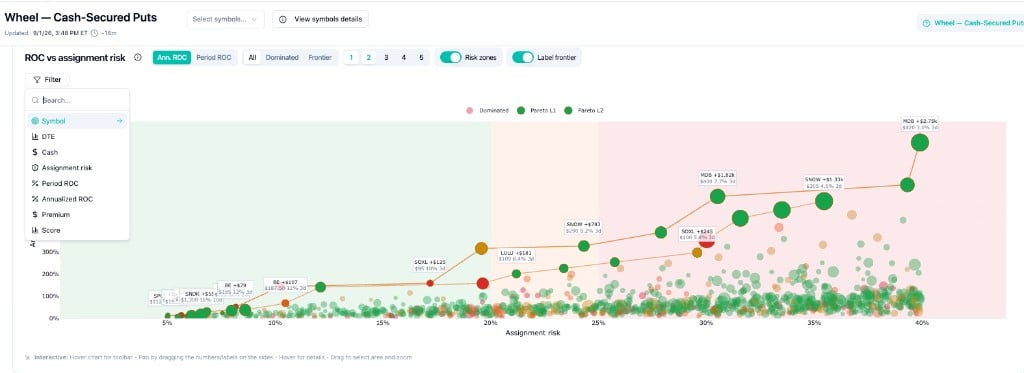
Scope the universe (header)
You already passed Module 2 ownability—don’t let a high-ROC dot on a bad name tempt you.Weekly wheel — only short-dated puts
You want to manage every Friday, not babysit a 45 DTE line for a month.Cap collateral per contract
Your rule: no single CSP above $8,500 cash at risk (e.g. ~10% of an $85k wheel sleeve).Stay left on assignment risk
You prefer premium income, not surprise share delivery.Floor return for this expiry (Period ROC)
You won’t sell a 21 DTE put for less than 1% on cash for the cycle.Compare different DTEs (Annualized ROC)
You’re mixing 10 DTE and 35 DTE dots and need a common yardstick.Skip credits eaten by spread and fees
$45 premium on a wide name isn’t worth the ticket.Tie-break among frontier dots (Score)
Two L1 frontier puts look similar on ROC and risk.Head-to-head: two finalists
You’ve scanned the cloud; only AAPL and MSFT remain ownable.Conservative income (full stack)
Typical “monthly wheel, don’t get assigned casually” session:Chart toggles (not filters)
These change how you read the same filtered data:
The CSP table Filter button narrows rows after you pick a dot—use it when the side panel helped you reject a symbol but you still want to compare other strikes in the table.
ROC vs assignment risk (scatter)
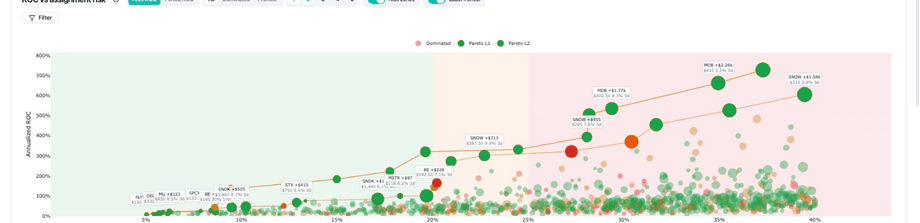
Purpose
Give a bird’s-eye view of the premium-efficiency vs assignment-risk trade-off across every CSP that passed your filters. The scatter is for elimination and shortlisting, not for precise order entry. Core wheel tension it visualizes: more premium (higher ROC) often comes with more assignment risk—i.e. a higher chance you end up owning shares at that strike.Period ROC vs annualized ROC
On the Wheel page, ROC measures premium income vs cash secured for a single cash-secured put (Phase A)—not your full wheel P&L after assignment, covered calls, or stock moves.
Cash required is the collateral for one CSP—typically strike × 100 (shown as Cash / cash required in the tooltip and table). Premium is the credit for selling that put (delayed on charts—confirm live at your broker).
Worked example (from the scatter tooltip on a 3 DTE MDB put):
What ROC does not include: early buybacks, partial fills, commissions, slippage, assignment, stock P&L, or covered-call income. It is a screening metric for comparing CSP credits on equal collateral—not a forecast of account growth. Match the chart toggle (Ann. ROC / Period ROC) and scatter Filter to the metric you are actually thresholding.
Potential usage
Chart controls
How to read each dot
One dot = one CSP (symbol + strike + expiry) after your filters. Position on the chart is the trade-off; interaction is how you drill in.Hover → click (interaction)
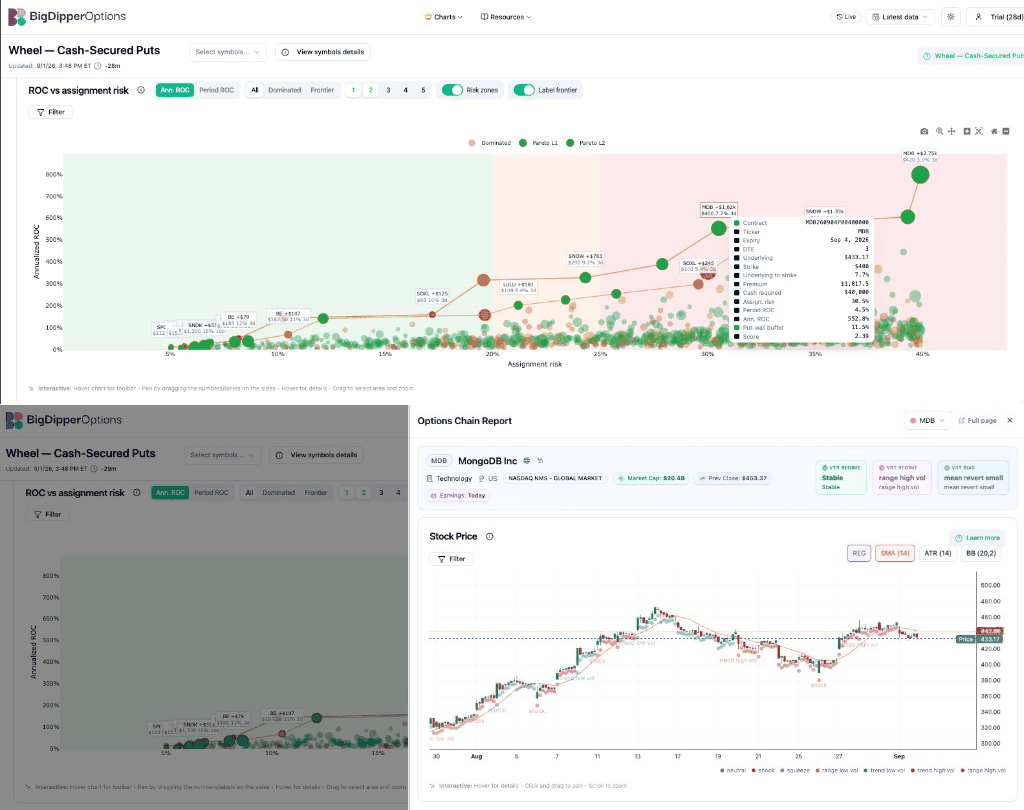
Click — side panel: Opens the Options Chain Report for that symbol. Scroll for price, VRT regime, GEX, walls, and bias—then reject the symbol if you would not own it. Here, Earnings: Today is a Module 2 fail for many wheel policies even with strong ROC on the dot.
Typical pass on a frontier dot:
- Hover — tooltip confirms strike, cash, assignment risk, and ROC fit your filters.
- Click — side panel for ownability (events, regime, structure). Reject the symbol if anything fails Module 2.
- Next dot — repeat until 1–2 symbols survive.
- CSP table — verify spread, OI, delta, and live broker quote for the specific strike.
All CSP candidates (table)
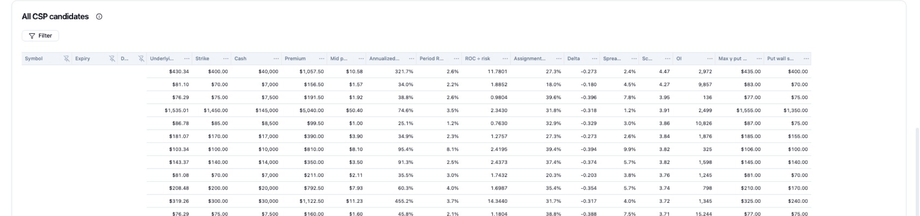
Purpose
Turn scatter finalists into actionable numbers for symbols that survived the side-panel reject pass: exact strike, credit, capital at risk, liquidity, and structure columns for the puts you might actually sell. Use the scatter to shortlist; use the side panel to reject symbols; use the table to verify you can trade what remains.Potential usage
Column reference
Table habits: scroll horizontally · pin columns · sort by header · paginate. Sort by ROC or assignment risk only after ownability and liquidity pass.
All Covered Calls (Phase B)
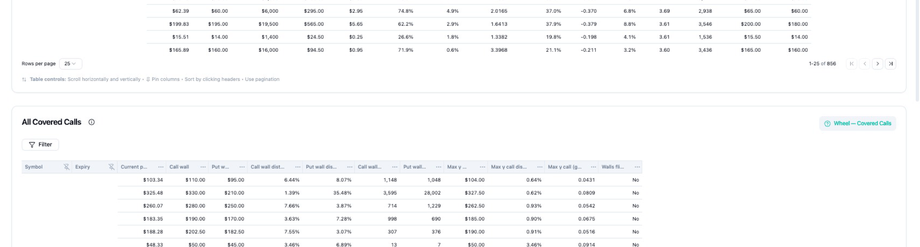
Purpose
Support Phase B of the wheel: you hold 100 shares per contract and need a covered-call strike that matches your willingness to sell, premium goals, and market structure. This block is a planning and comparison view—not a substitute for Module 4 management rules (50–70% profit take, rolls, called-away mindset).Potential usage
Column reference
Full lifecycle: Module 4 — Lifecycle · Lifecycle decision map.
Putting the three blocks together
Suggested workflow (with Module 3)
- Module 2 — reject tickers you would not own; note DTE, delta, and size caps.
- Select symbols — set header watchlist.
- Scatter Filter — copy a stack from Filtering the Wheel page or build your own.
- Scatter view — frontier + risk zones; hover dots, click finalists to deep-analyze and reject symbols in the side panel.
- CSP table — verify spread, OI, delta for symbols that passed; use table Filter if needed.
- Options Chain Report (optional) — full-page deep dive via Navigation tips when you need more room than the side panel.
- Pre-trade checklist — Module 3.
- Reject until at most one remains.
- Broker — confirm live underlying, strike, and option premium.
- Journal — Module 4.